
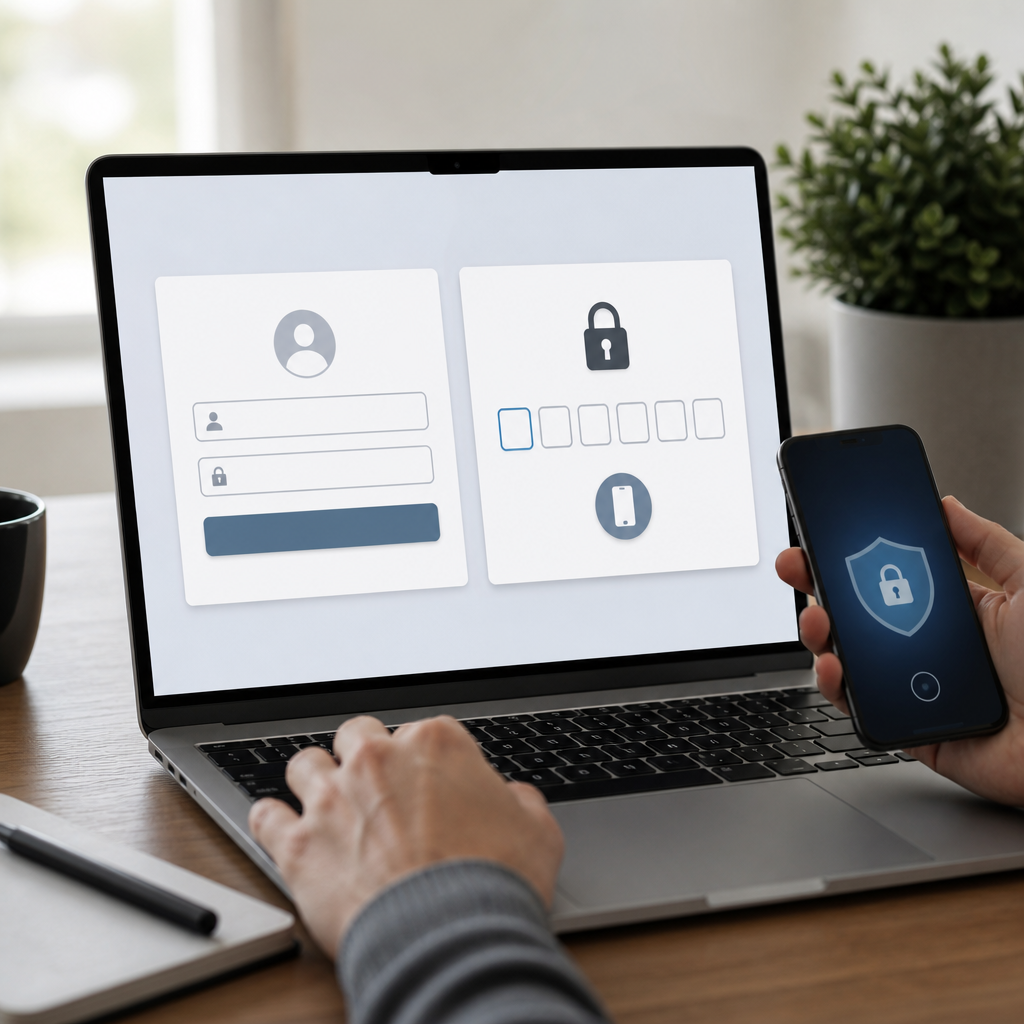
A well-designed page shell helps users complete multi factor authentication without confusion or unnecessary delay. Font size affects readability, trust, and successful verification. Clear MFA screens also reduce support requests and lower risky user behavior. Businesses should pair secure interface design with multifactor authentication and cloud backup strategies for stronger daily protection.
Why Page Shell Design Matters for MFA Security
The page shell is the consistent visual frame around an authentication experience. It includes navigation, spacing, logos, headings, form areas, and supporting guidance. Every element should help users recognize a legitimate sign-in request.
Poor page shell design can make real prompts appear suspicious. It can also make phishing pages seem more convincing. Users need immediate visual cues that show where they are and what happens next.
A clear page shell supports secure decisions during stressful moments. It should guide users toward verification instead of hurried approvals.
- Use consistent brand colors across login and MFA screens.
- Place the company logo in a predictable location.
- Keep navigation limited during authentication steps.
- Show the current step clearly, such as “Verify Your Identity.”
- Use trusted visual patterns recommended by the OWASP authentication guidance.
Businesses should also protect employees from deceptive prompts. Smarter phishing protection works best when users can identify authentic pages quickly.
Page Shell Layouts Need a Clear Reading Path
A secure page shell should direct attention from the heading to the action. Users should not search for codes, buttons, or recovery options. A simple visual path creates confidence and reduces authentication errors.
Place the most important information near the top of the content area. The primary action should remain visible without excessive scrolling. Avoid unnecessary banners, ads, or competing links.
A narrow content container improves focus on desktop screens. Responsive layouts should preserve that focus on tablets and phones. This approach reflects the benefits described in max-width design for easier workplace technology.
Use these layout priorities for MFA pages:
- Put the page title above the authentication instruction.
- Display one task per screen whenever possible.
- Keep code entry fields close to related guidance.
- Position the primary button beneath the final input.
- Separate recovery choices from routine verification steps.
- Leave enough whitespace around critical controls.
The Web Content Accessibility Guidelines also support predictable layouts. Consistent page structure helps users with visual, cognitive, and motor differences.
Choosing the Right Font Size for Multi Factor Authentication
Font size directly affects whether users can read authentication instructions correctly. Small text can cause mistyped codes, skipped warnings, and accidental approvals. Large text can overwhelm users when every element competes for attention.
Most MFA interfaces benefit from a readable body font size between 16 and 18 pixels. This range works well across many desktop and mobile displays. However, testing with real users remains essential.
Headings should create a clear hierarchy without consuming excessive screen space. The sign-in task must stay visible alongside the instructions.
Consider these practical font size guidelines:
- Use 16 to 18 pixels for body instructions.
- Use 20 to 24 pixels for primary authentication headings.
- Use 14 to 16 pixels for secondary helper text.
- Use 16 pixels or larger for buttons and form labels.
- Use 14 pixels or larger for less critical metadata.
- Avoid text below 12 pixels for essential security content.
A multi factor prompt may include time-sensitive instructions. Users should not need to zoom before entering a one-time passcode. Larger text also helps employees using smaller mobile screens.
Font size should work with contrast, spacing, and clear language. Review the W3C guidance on text spacing when testing flexible layouts. Text must remain readable after browser zoom or accessibility adjustments.
Build a Strong Typography Hierarchy for Secure Decisions
Typography hierarchy tells users what to read first. On an MFA screen, the priority should be unmistakable. The user needs to know the requested action, the reason, and the available alternatives.
Start with a direct heading. Then provide a brief instruction. Finally, show the input field or approval button. This sequence prevents users from approving requests without understanding their purpose.
For example, “Enter the six-digit code” is clearer than “Authentication required.” Supporting text can explain where the code came from. It can also explain what to do when the code never arrives.
A helpful hierarchy often includes:
- A clear page heading for the authentication task.
- A short instruction beneath the heading.
- A visible identifier for the account or device.
- A prominent code field or approval control.
- A secondary recovery link for access problems.
- A concise warning against sharing verification codes.
Avoid using bold text for every message. Overuse weakens emphasis and creates visual noise. Reserve bold styling for actions, deadlines, and critical security warnings.
Good typography should reinforce ongoing cybersecurity education. Employees who understand warning signs can resist fraudulent approval requests. Review how reliable technology helps employees prevent phishing attacks for broader user-focused security practices.
Make Error Messages Easy to Read and Act On
Authentication errors often occur when users are already frustrated. A vague message can cause repeated failures or unsafe workarounds. Error text needs a readable font size and a specific next step.
Use 16-pixel text for critical error messages. Place the message near the affected field. Do not rely on red color alone, since some users cannot distinguish color changes easily.
A useful message explains the problem without exposing sensitive details. It should also tell users how to recover safely.
Use clear error communication practices:
- State what failed, such as “That code has expired.”
- Explain the next action, such as “Request a new code.”
- Keep error messages visible until users resolve the issue.
- Use an icon and text instead of color alone.
- Avoid revealing whether an account exists.
- Provide a secure support route for repeated failures.
Passwordless and multi factor authentication flows still require careful recovery options. Attackers often target support processes when technical controls block direct access. The NIST digital identity guidelines provide useful direction for secure authentication design.
Test Page Shell Font Size Across Devices and Conditions
A page shell may look excellent on a designer’s monitor. It can fail on a small phone, older laptop, or high-zoom browser. Testing identifies problems before users encounter them during urgent sign-ins.
Test screens in bright light, low light, and mobile conditions. Review every state, including errors, timeouts, expired codes, and account recovery. Also test with browser zoom set to 200 percent.
Include employees with different roles in usability testing. Their feedback can reveal unclear terms and hidden buttons. Security teams should watch for behavior that indicates confusion.
Use this testing checklist:
- Verify body text remains readable at 200 percent zoom.
- Confirm buttons remain visible on smaller screens.
- Check that text does not overlap at larger font settings.
- Test keyboard navigation through every control.
- Confirm screen readers announce labels and errors.
- Measure completion rates for each authentication method.
Testing should include phishing simulations and recovery workflows. A secure design supports users before, during, and after an attempted attack. Organizations can strengthen this effort through MFA and data backup protections against ransomware.
Balance Brand Design With Accessibility and Trust
Brand identity matters, but security screens require restraint. Decorative fonts may fit marketing pages, yet they can reduce clarity during account verification. Use familiar sans-serif or highly legible serif fonts for essential authentication text.
A readable font size should never depend on a user recognizing a stylized letterform. Distinguish similar characters clearly, including zero and O, or one and lowercase L. This distinction matters when users enter codes manually.
Trusted MFA pages usually share these visual qualities:
- High contrast between text and background colors.
- Familiar font families with clear letter shapes.
- Consistent button labels across every authentication step.
- Limited use of animations and visual distractions.
- Prominent security guidance near approval requests.
- Accessible alternatives for users with different needs.
Organizations should also prepare employees for legitimate security changes. Clear communication makes unfamiliar MFA pages less alarming. Managed technology teams can help standardize these experiences through reliable IT support for growing businesses.
Final Thoughts
A strong page shell makes multi factor authentication easier to complete and harder to impersonate. Choose a readable font size, clear hierarchy, and predictable layout for every verification step. When accessibility and security work together, employees can protect accounts with greater speed and confidence.